
Upp.ai: the alarm that stays on until you are up
A snooze button lets you go back to sleep. Upp.ai takes it away: the alarm keeps going until you prove you are up, by standing in front of the camera or doing push-ups. We designed the phone app and the owner's admin dashboard.
What did BetterAI build for Upp.ai?
BetterAI designed Upp.ai, a wake-up app with an alarm that does not stop until you complete a promised action on camera: standing up or doing push-ups. It has onboarding, alarm setup, analytics, referrals, three themes and a web admin dashboard for the owner.
What problem does Upp.ai solve?
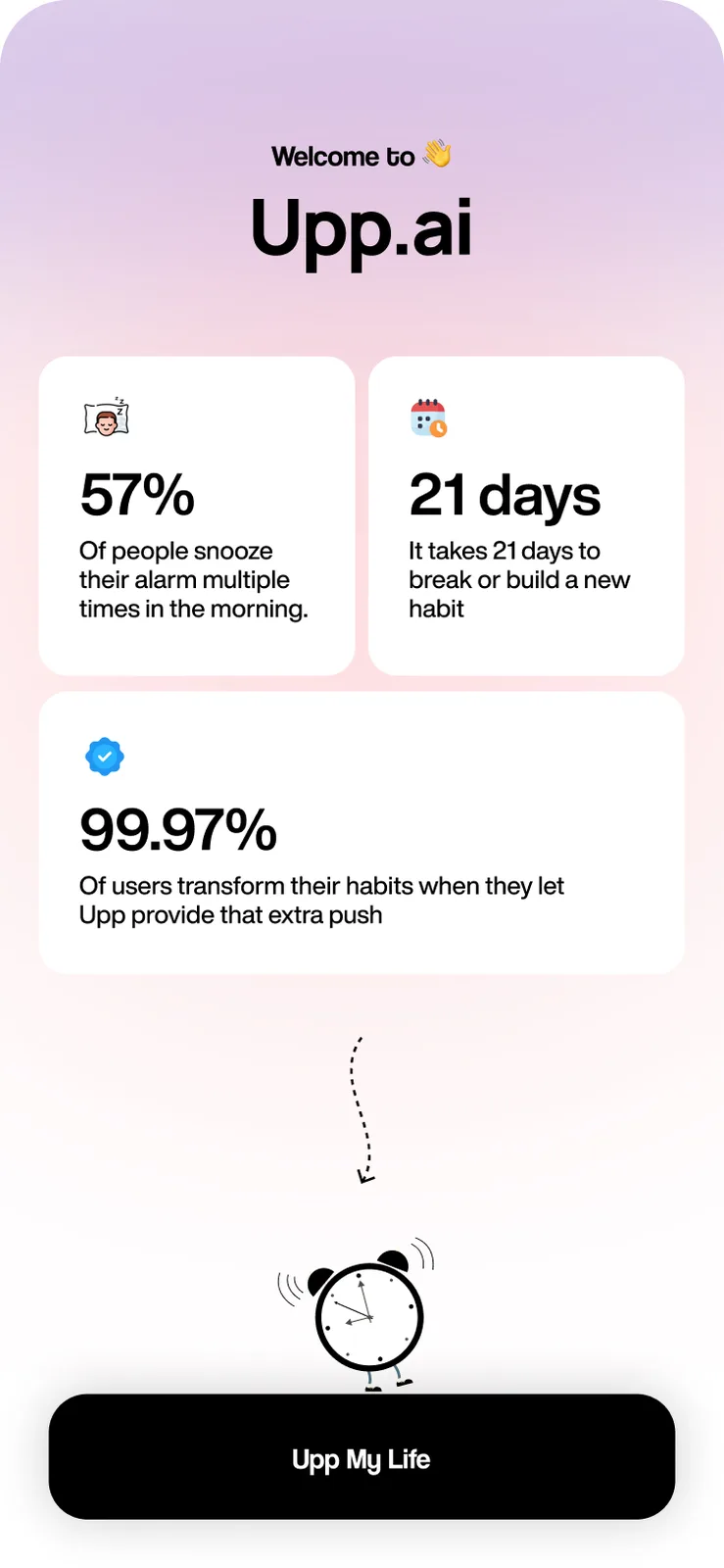
Most alarms come with a snooze button, so many people snooze. Upp.ai opens with snooze statistics and the idea that habits take time to build, then answers with one rule: the alarm does not turn off until you complete your promised action.
See the full case study
What we built, the real screens, how it works and the tech behind it. Free, about 20 seconds.
What we built
A phone app that will not take no for an answer, and a dashboard for the person who owns it.
The owner sees the business.
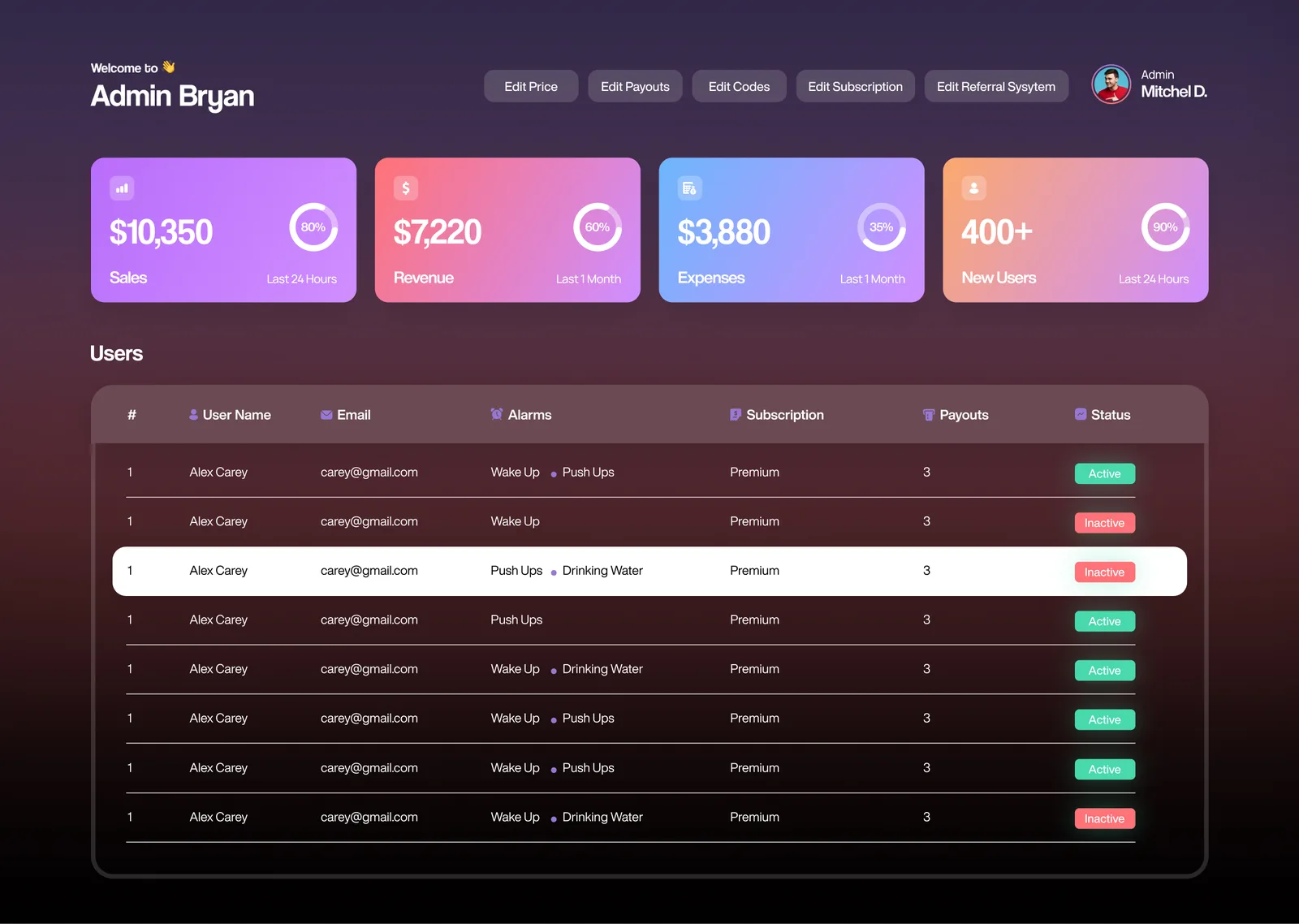
Cards for sales, revenue, expenses and new users, a users table with alarms, subscription and payouts, and controls for price, payouts, codes, subscription and referrals.
Choose what you must do.
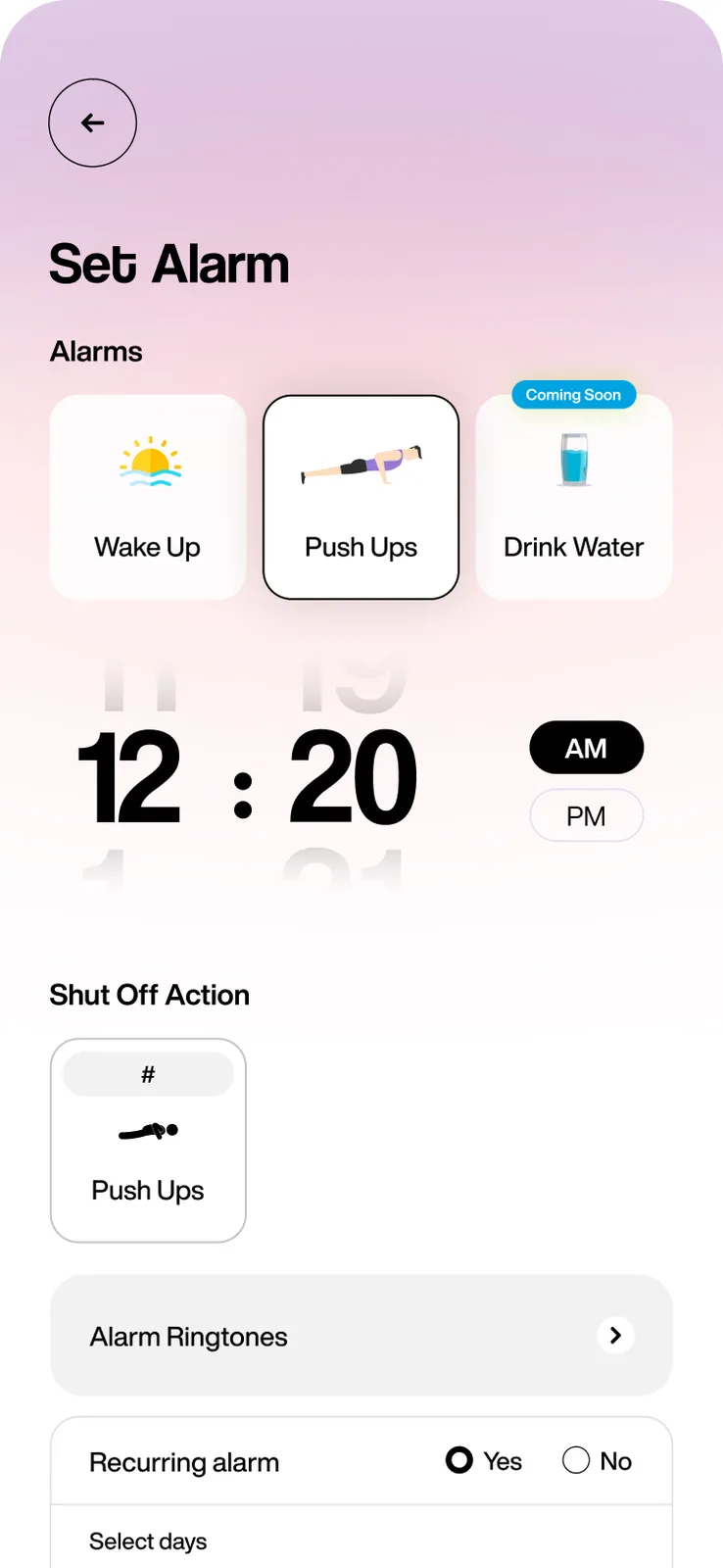
Wake Up or Push Ups, plus time, ringtone, repeat days, snooze on or off and a custom greeting. Drink Water is marked coming soon.
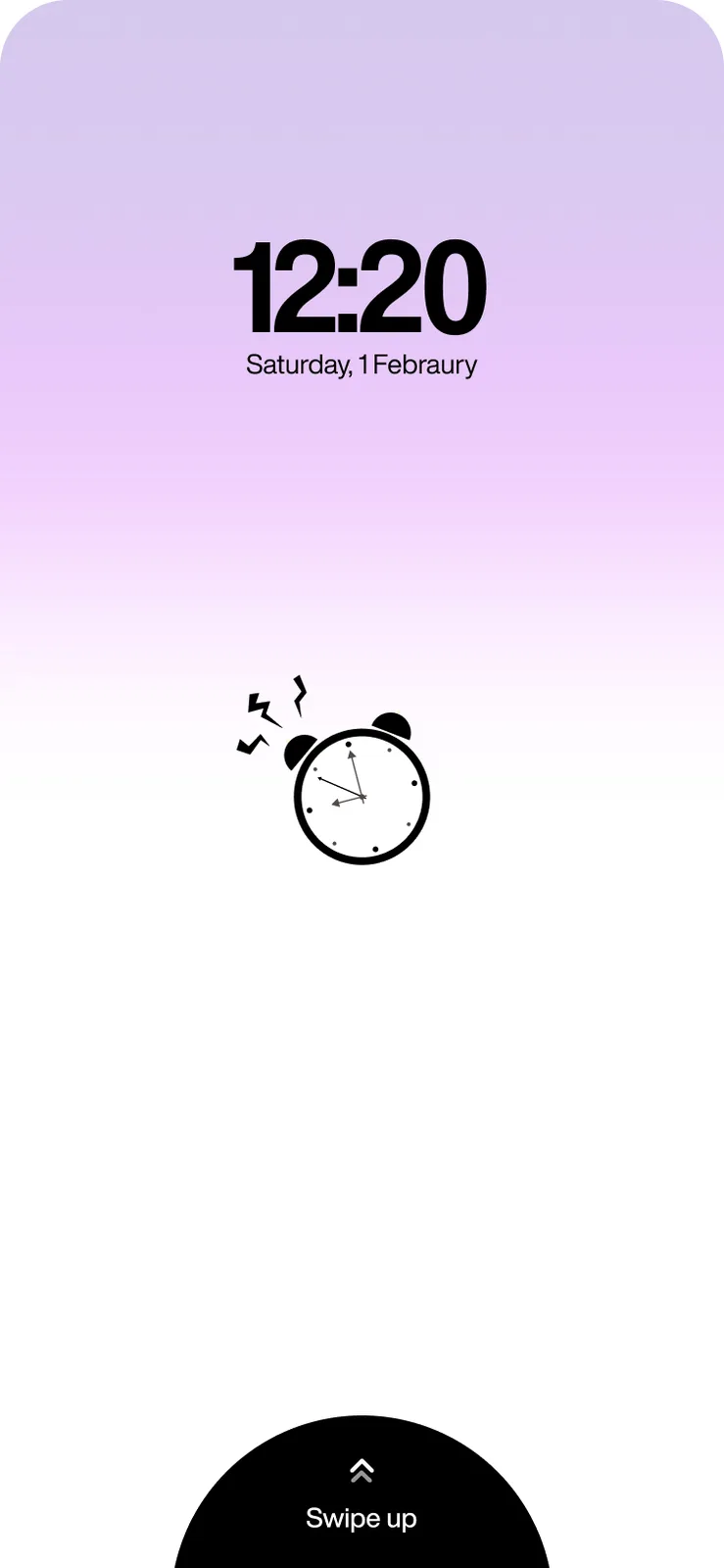
Swipe up to start.
The lock screen rings until you open the camera.
The camera watches you stand.
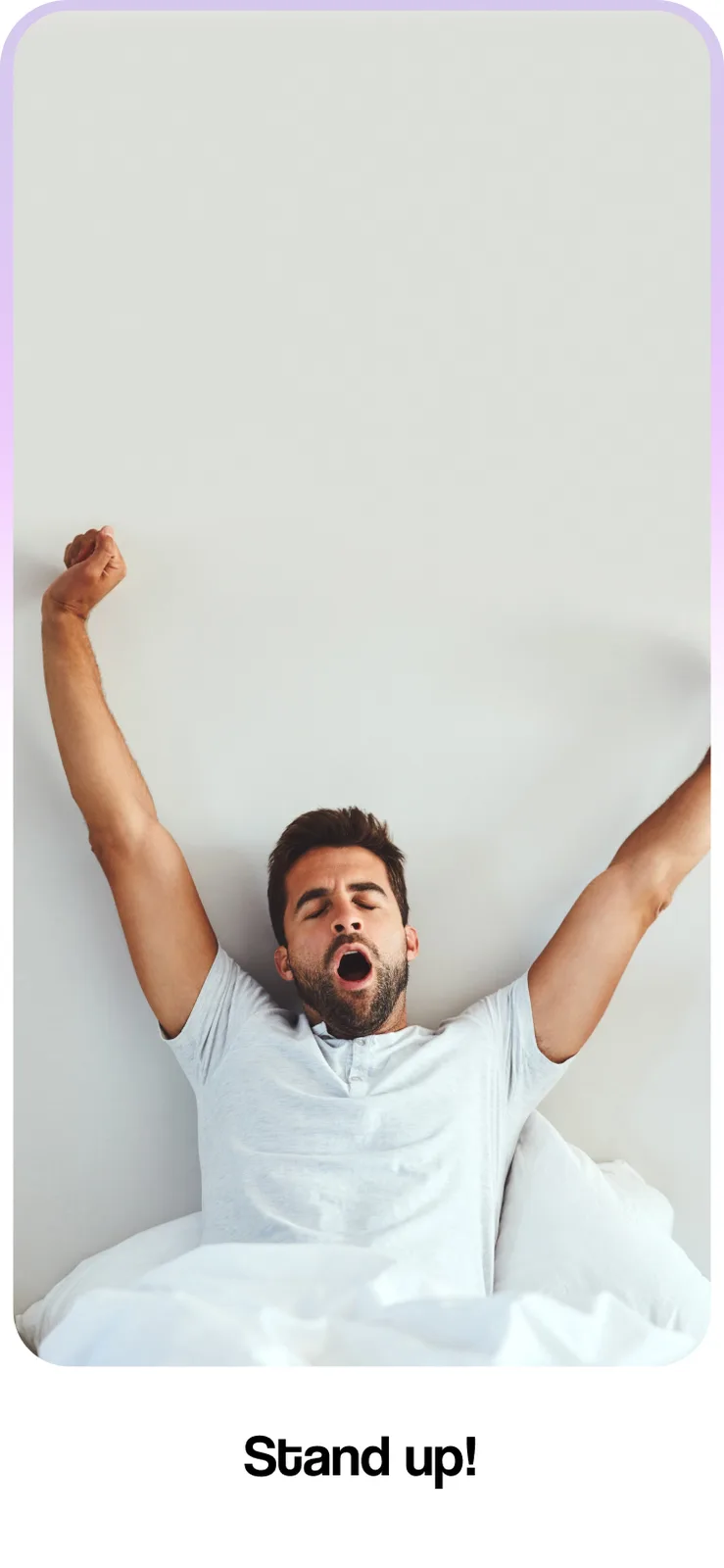
The screen says Stand up! while the camera confirms the action.
How long it took.
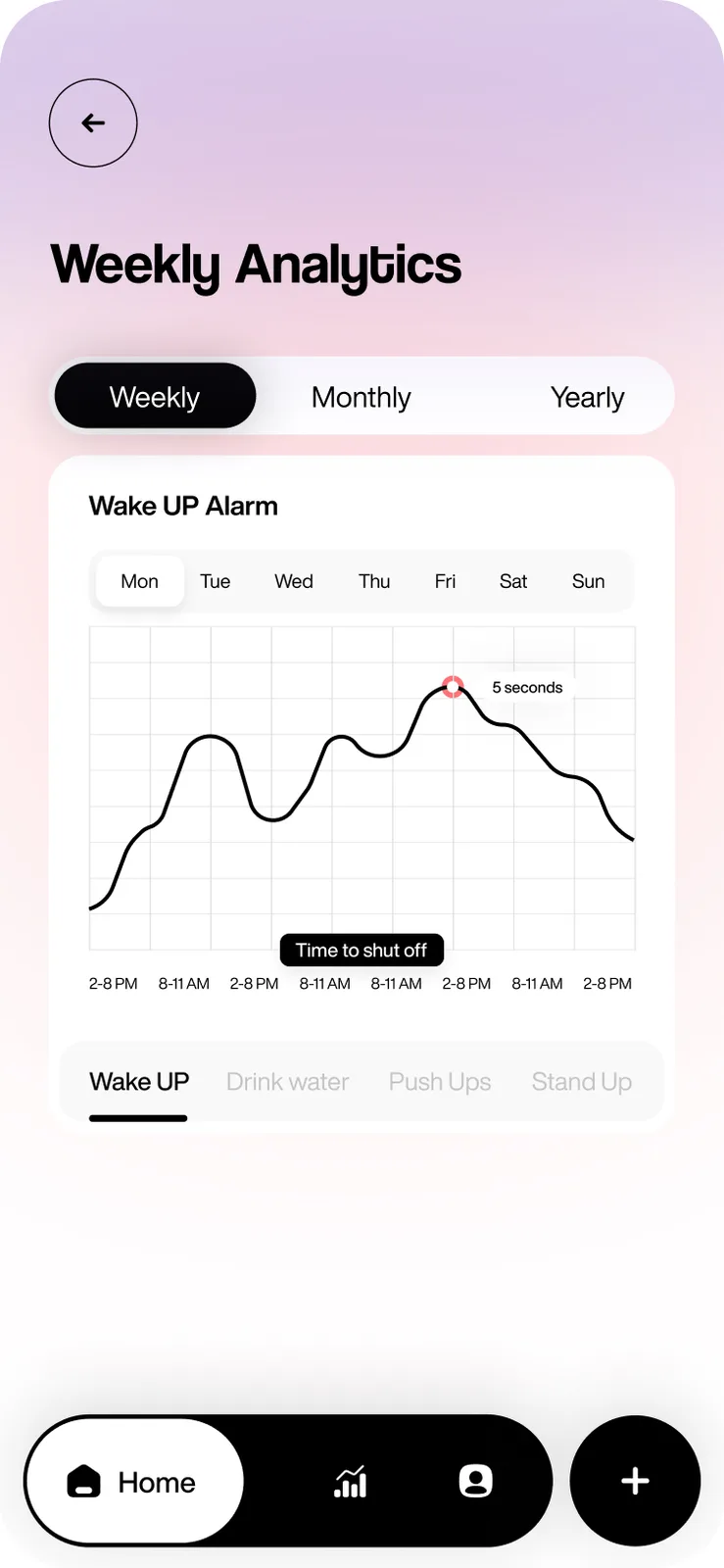
Weekly, monthly and yearly charts of the time to shut off each alarm type.
Explain the rule first.
Opens with snooze statistics, then asks a few questions, then asks for camera and notification access.
Light, dark and off-white.
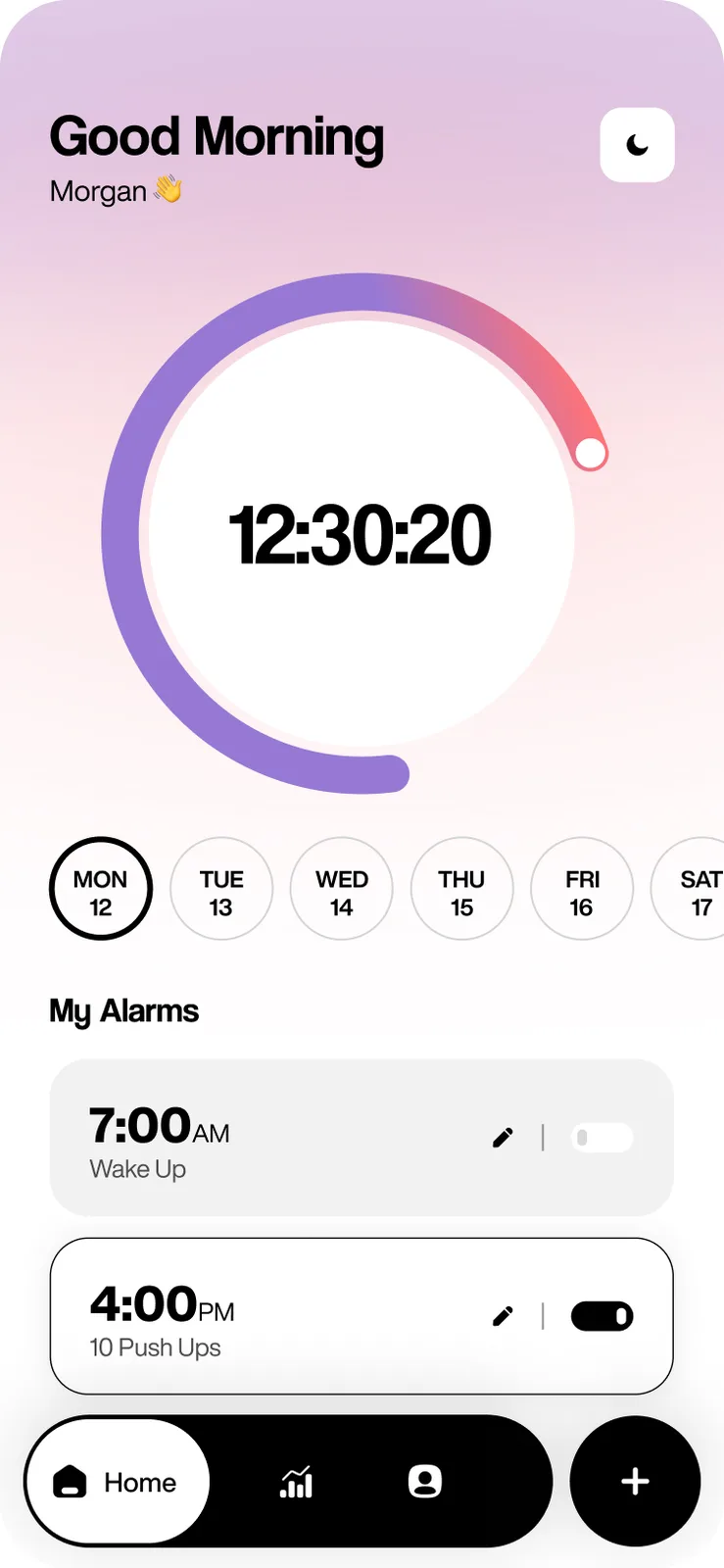
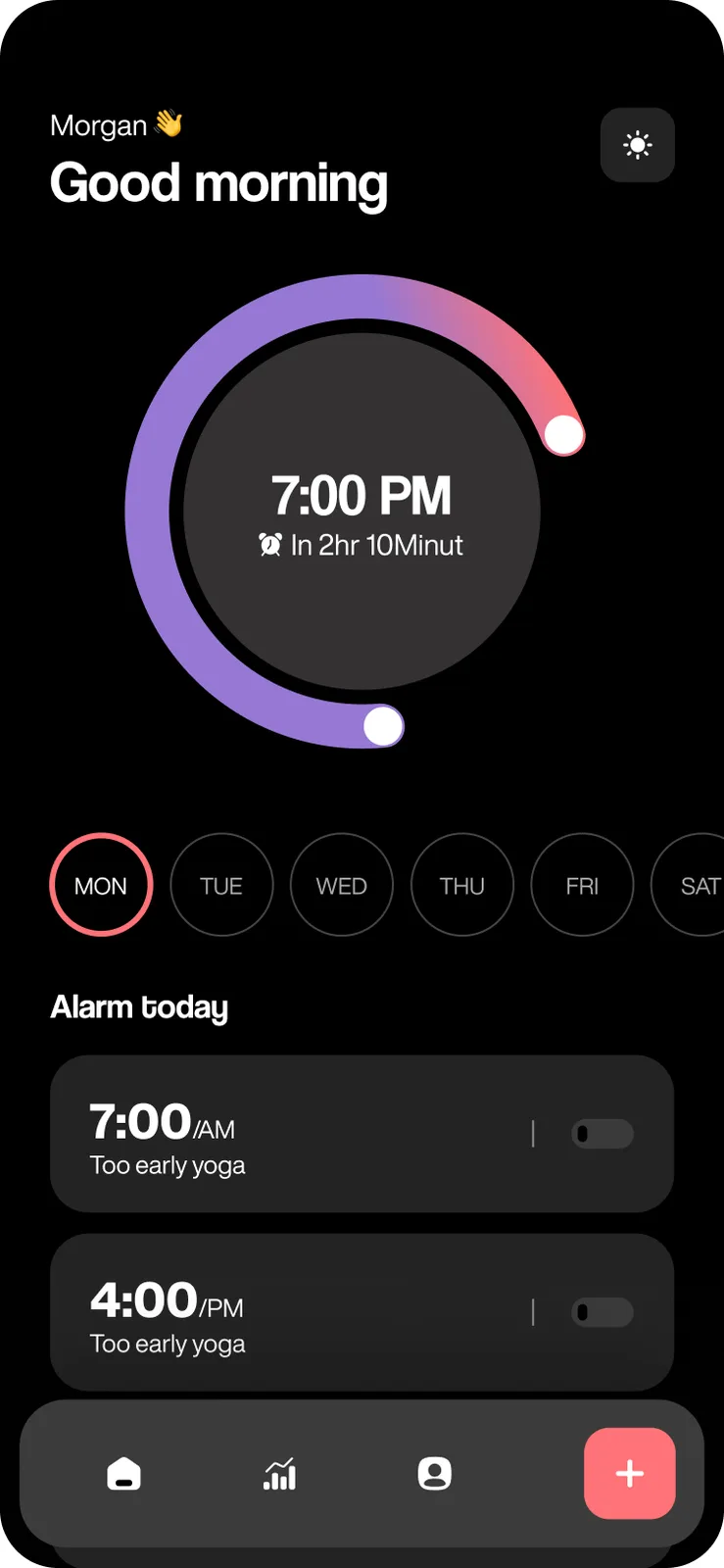
Pick a mode in the profile, with a language setting beside it. The home screen is a big clock ring, a day picker and the alarm list with toggles.
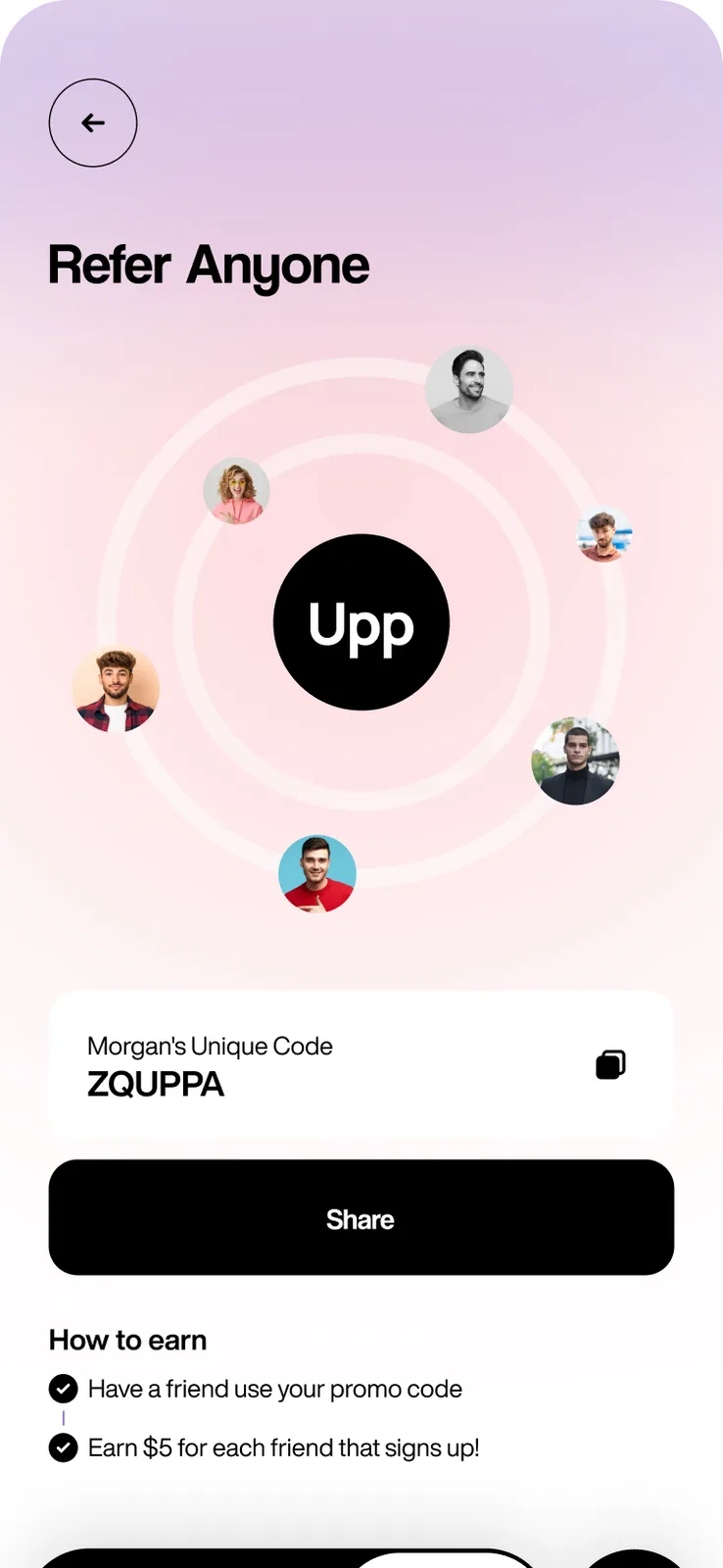
Share a code.
A refer screen with orbiting avatars and a personal code to share.
Try it, then subscribe.
The onboarding flow ends with plan screens.
- A free trial before the premium plan
- Plan options to pick from
- A PIN code screen
How does an alarm turn into a morning?
You set an alarm with a promised action, let it ring and swipe up to open the camera. The alarm stays on until the camera sees you do it. Afterwards the app charts how long each shut-off took, by week, month and year.
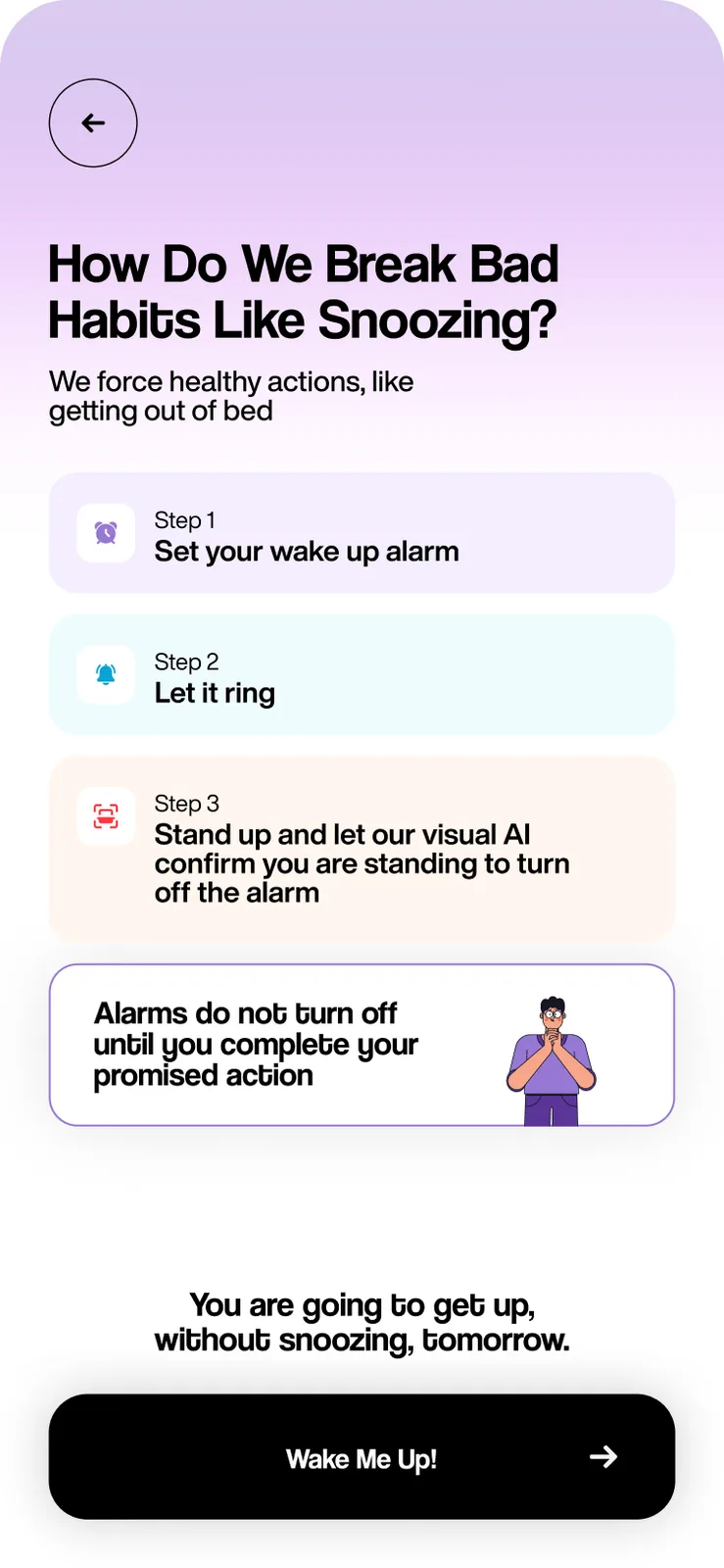
Learn the ruleA three-step explainer: set the alarm, let it ring, stand up.
See your alarmsA clock ring and an alarm list with toggles.
Set the alarmChoose Wake Up or Push Ups, then time and repeat days.
It ringsSwipe up to open the camera.
Stand upThe camera watches while the screen says Stand up!
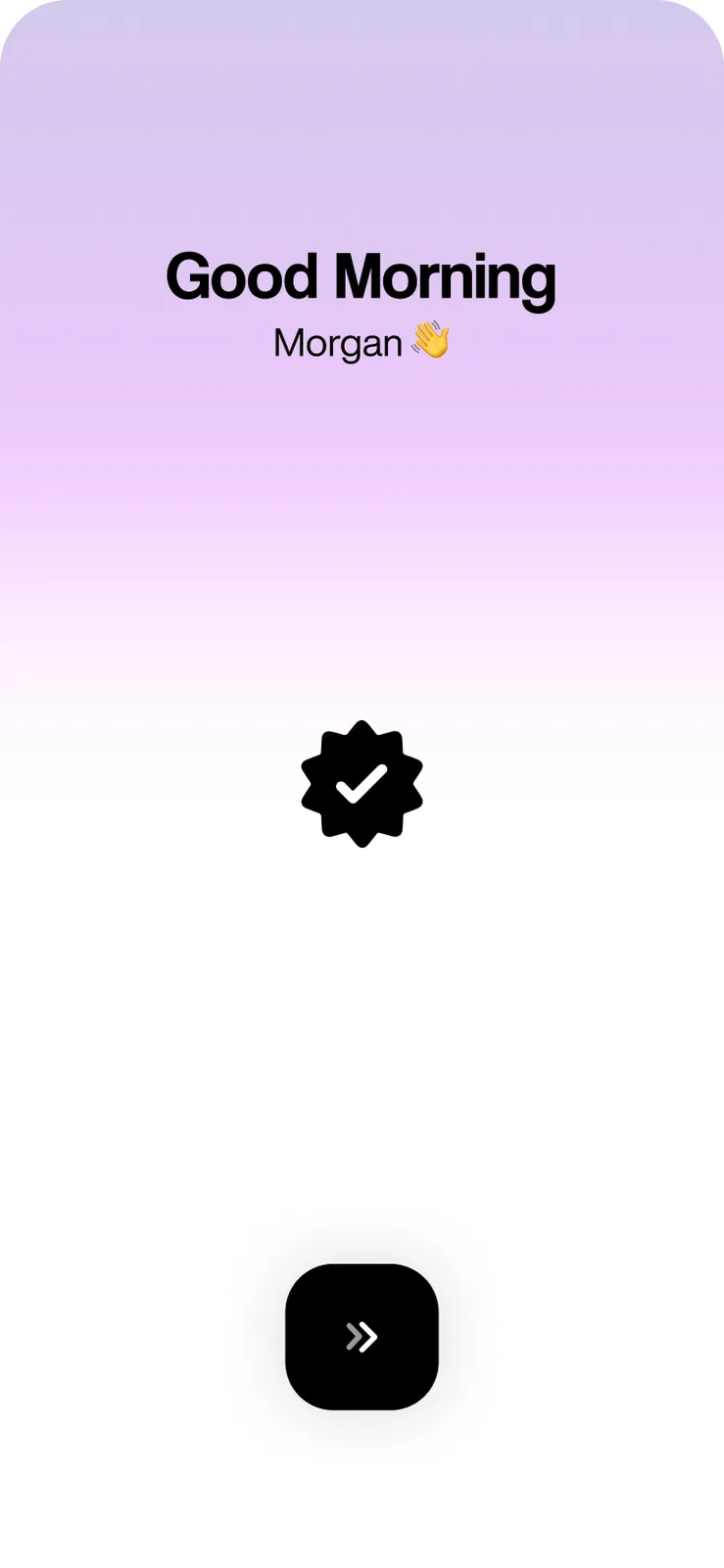
Good morningA checkmark confirms you are up.
The Upp.ai screens
Keep scrolling to see more.
WelcomeSnooze statistics
How it worksThree steps
HomeClock ring and alarms
Set alarmWake Up or Push Ups
RingingSwipe up
Stand upCamera check
ConfirmedYou are up
AnalyticsWeekly, monthly, yearly
Dark themeLight, dark, off-white
ReferShare your code
Every screen we designed
42 screens from Upp.ai, grouped by who uses them. Tap any screen to see it full size.
What is inside the product?
A phone app for people who want to get up and a web dashboard for the owner. Inside: camera confirmation of standing up or push-ups, alarms with repeat days and custom greetings, notifications, weekly, monthly and yearly analytics, referral codes, a free trial and subscription screens, and light, dark and off-white themes. The screens are designed for iPhone-sized phones.
Questions about Upp.ai
What does Upp.ai do?
It is an alarm that keeps ringing until you complete a promised action on camera: standing up or doing push-ups. It also has analytics, referral codes, three themes and a web admin dashboard for the owner.
How does the alarm know I am up?
When the alarm rings you swipe up and the camera opens. The screen says Stand up! while the camera watches for the action you chose. For a new project we choose and test the vision model on real people before launch.
Is there a dashboard for the app owner?
Yes. The web admin dashboard shows sales, revenue, expenses and new users, lists users with their alarms, subscription and payouts, and has controls for price, payouts, codes, subscription and referrals.
Can you build a habit or wellness app like this?
Yes. The same pattern of a promise, a camera check and a progress chart fits wake-up, exercise and routine apps. Book a free AI plan call and we will map it to your idea.
 UrbanBloomAI plant care app
 UpkeepOperations software, app and AI assistant
 Hot Shot's SecretAI product expert
Want an app like this?
Book a free call. Tell us who the app is for and we will show you what to build first.
Build my project